
When setting up a professional live stream, podcast studio, or corporate video broadcast, routing clean audio from an external sound mixer into video switchers (such as the Blackmagic ATEM Mini series), camera capture cards, or dual-PC streaming setups is essential.
However, the moment you connect a cable from your audio mixer’s main or auxiliary output into a video switcher or camera mic/line input, a loud 60Hz AC hum, high-pitched digital whine, or static buzz often appears in your stream’s audio feed.
Unplug the audio cable from the video switcher, and the noise stops instantly. But in a live broadcast, running without direct console audio is not an option.
As an audio and broadcast engineer with 20 years of live production experience, I can tell you that video-audio ground loops are among the most frustrating issues in modern streaming studios. They occur because video equipment, computers, and audio mixers share multiple ground paths through HDMI, USB, and power lines simultaneously.
Here is the technical reason why video switchers and streaming setups generate ground noise, and how to fix it permanently for crystal-clear broadcast audio.
The Anatomy of Video Switcher & Live Stream Ground Loops
To understand why stream audio gets noisy, you must trace the ground loop created when linking video switchers, streaming PCs, cameras, and audio consoles.
                  ┌──────────────────────────────┐
                  │    Streaming PC / Laptop     │
                  └──────┬────────────────┬──────┘
                         │ (USB Cable)    │ (HDMI / USB)
                         ▼                ▼
┌────────────────────────────────┐      ┌────────────────────────────────┐
│ Audio Interface / Main Mixer   │      │ Video Switcher (e.g. ATEM)     │
└────────────────┬───────────────┘      └────────────────┬───────────────┘
                 │                                       │
                 └──────► [ Audio Interconnect Cable ] ──┘
                         (3.5mm / RCA / XLR Line Out)
                        (Ground Loop Voltage Delta)
- The HDMI & USB Ground Mesh: Your streaming PC connects to the video switcher or capture card via USB or HDMI. HDMI and USB cables carry dedicated ground shields to protect high-bandwidth video data.
- Multi-Power Supply Potential Differential: The streaming PC, video switcher, cameras, and audio mixer are typically plugged into separate power strips or wall outlets. Small ground voltage differentials exist between these power supplies.
- High-Frequency Video Clock Interference: High-density video signals (1080p60 or 4K60) and GPU processing create substantial high-frequency electrical noise. This dirty current travels along the HDMI/USB ground shields into the video switcher.
- The Audio Input Bleed: When you plug an audio cable from your mixer into the video switcher’s 3.5mm, RCA, or XLR audio input, the video switcher’s dirty ground current uses your audio cable’s shield as a return path to earth. The audio switcher converts this ground current into audible buzzing on your stream.
Step-by-Step Diagnostic Sequence for Live Streams
Before buying new cables or modifying settings in OBS / vMix, run this quick diagnostic sequence:
Step 1: Stream Monitoring vs. Headphones Check
Plug headphones directly into your audio mixer’s monitor jack, then listen to the stream audio output through OBS, vMix, or YouTube/Twitch broadcast feed.
- If the audio in your mixer headphones is clean, but the stream audio hums: The ground loop is created on the audio cable connecting the mixer to the video switcher/capture card.
Step 2: The -15dB Level & Mic/Line Mismatch Test
Check whether your video switcher input is configured for Mic Level or Line Level.
- Many video switchers (like the ATEM Mini) defaulted to high-gain microphone inputs on 3.5mm jacks. Feeding a hot line-level output from an audio console into a camera/switcher mic jack will severely clip the input stage, resulting in distorted, noisy audio that sounds like a ground loop even when levels are turned down in software.
Why Cheap Audio Dongles Fail in Broadcast Environments
Streamers often buy cheap $5 3.5mm inline noise filters to fix this issue. However, consumer-grade isolators introduce major flaws into live streams:
- Frequency Roll-Off: Cheap transformers attenuate low frequencies below 80Hz and high frequencies above 12kHz, leaving host vocals sounding thin, boxy, and hollow.
- Stereo Phase & Crosstalk Issues: Poorly shielded dual-channel dongles suffer from high stereo crosstalk and phase cancellation, turning stereo music, gaming audio, or sound effects into muddy mono sound.
- Lack of Headroom: Hot line-level output from digital mixers overloads small isolator cores, introducing harsh harmonic distortion during loud vocal peaks, screaming, or music stings.
The Professional Fix: True Line Isolation with Attenuation
The safest and most effective way to eliminate ground loops between video gear and audio consoles is to insert a passive 1:1 audio line isolator with custom broadcast-grade transformers between the mixer output and the video switcher/capture card audio input.
[ Audio Mixer / Interface ]
            │ (Main / AUX / Bus Line Output)
            ▼
[ FS-ELEC PRO MAX2 Ground Isolator ] ──► (Physical Galvanic Break + -15dB Pad)
            │ (3.5mm / RCA / XLR Out)
            ▼
[ Video Switcher / Camera Capture ] =======> Pristine Broadcast Stream Audio!
Why the FS-ELEC PRO MAX2 is the Ultimate Broadcast & Streaming Solution
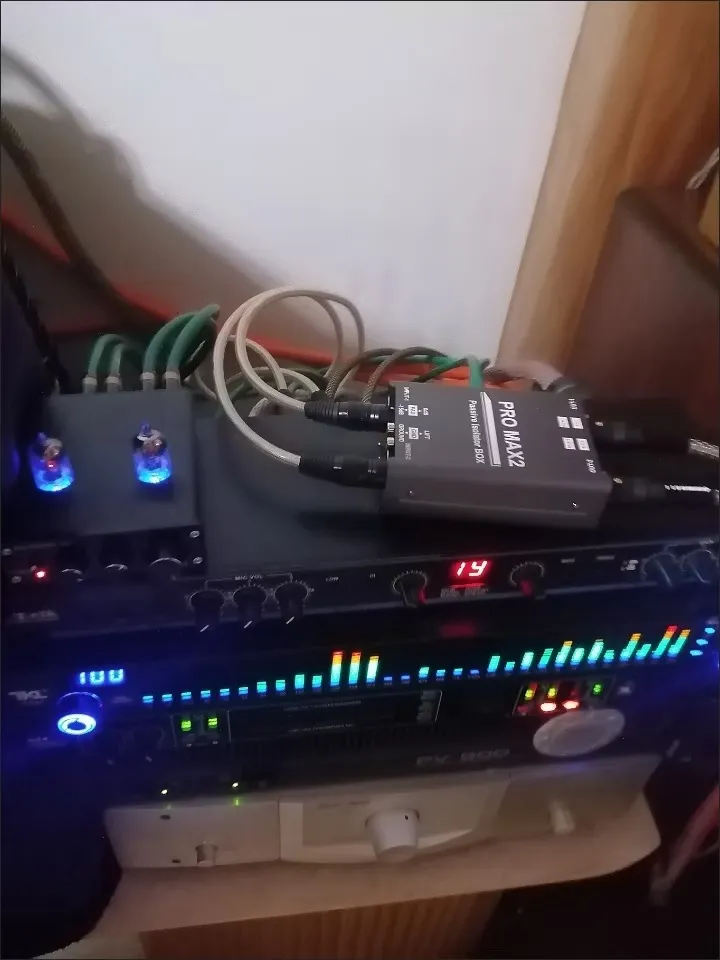
For live streamers, church AV directors, podcast producers, and video technicians, the FS-ELEC PRO MAX2 is specifically designed to bridge the gap between pro audio equipment and video switchers:
- 1500V Galvanic Isolation: High-isolation custom transformers completely break physical copper ground lines between audio consoles, camera rigs, and streaming PCs, terminating 60Hz hum and video clock hash instantly.
- Essential -15dB PAD Attenuation Switch: Instantly tames hot line-level signals coming from pro mixers (+4dBu) before entering sensitive 3.5mm or line inputs on ATEM switchers, DSLR cameras, or capture cards—eliminating input stage distortion and clipping.
- Universal Matrix I/O (XLR, 6.35mm TRS/TS, RCA):
- Connect balanced XLR or 6.35mm outputs from your sound console directly into the PRO MAX2.
- Output via RCA or 6.35mm to 3.5mm break-out cables directly into ATEM Mini line inputs, camera mic jacks, or streaming PC sound card inputs.
- 20Hz – 25kHz Flat Frequency Response (±0.2 dB): Broad frequency response ensures natural, broadcast-quality voice clarity for hosts, deep low-end for background music, and zero phase cancellation across stereo channels.
- Pro Ground Lift Switch: Provides immediate on-stage/in-studio ground shield disconnection at the flick of a toggle switch without risking safety earth grounds on AC power cords.
- Rugged 470g Shielded Metal Enclosure: Heavy industrial steel casing protects delicate internal transformer coils against electromagnetic interference (EMI/RFI) emitted by high-power streaming PCs, video monitors, and wireless video transmitters.
Summary Checklist for Clean Stream Audio
- Never disconnect AC safety ground pins on computers, monitors, or audio consoles.
- Ensure video switcher inputs are matched in level (or use a -15dB PAD when sending line-level signals to mic inputs).
- Insert a dual-channel passive line isolator like the FS-ELEC PRO MAX2 on the audio feed running into your video switcher or capture card to permanently eliminate video ground loop buzz.
Frequently Ask Question:
A: Video switchers share ground paths with PCs and cameras via HDMI/USB. Connecting an audio mixer creates a ground loop, dumping high-frequency video/power noise into the stream audio line.
A: Mixer outputs send hot line-level signals that clip mic inputs. Use an isolator with a built-in -15dB PAD (like the PRO MAX2) to attenuate the signal safely while breaking ground loops.